Some website features may not work properly and it will probably run very slowly. For a better experience (and better security!) keep your browser up to date. Check
here for latest versions.
Sandbox Mode
Warning! Use fictitious data only; any personal data entered will become publicly available.
Get free 'admin' access.
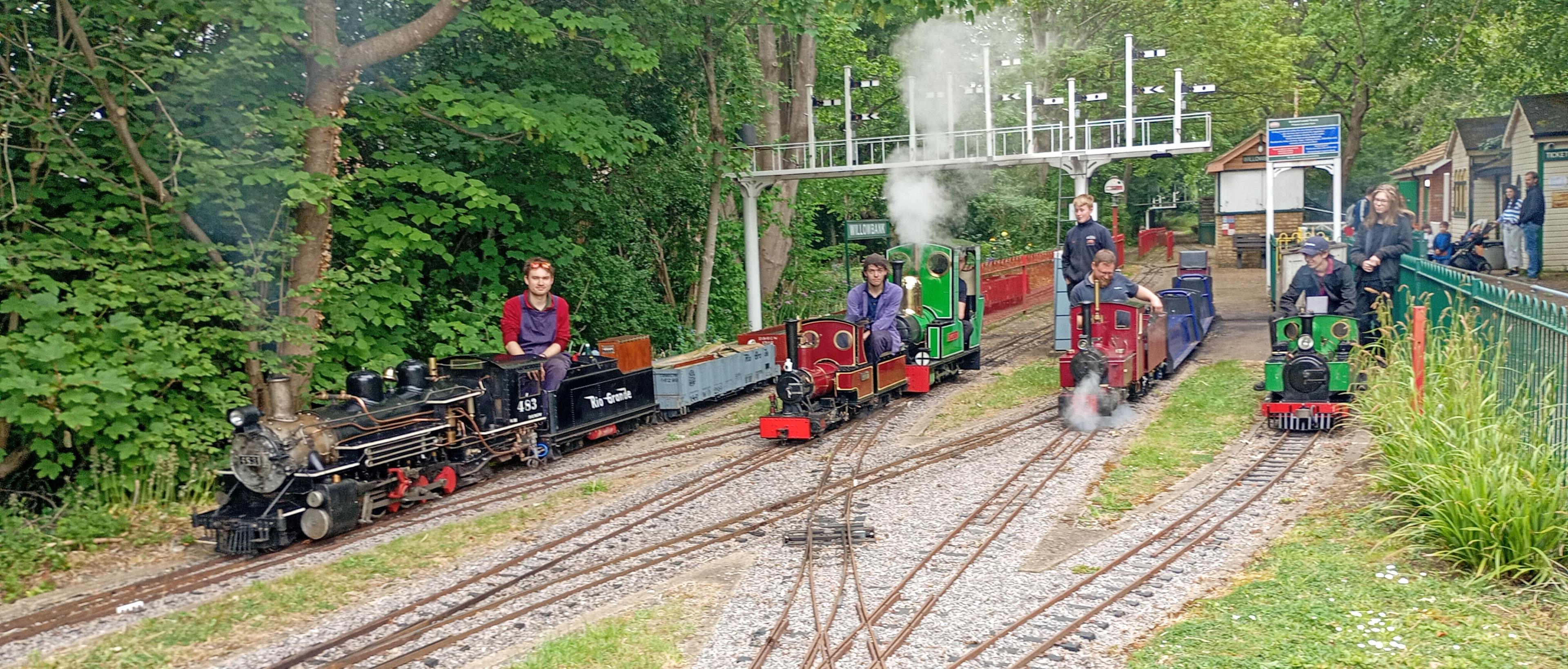
{"ID":1090,"SpaceID":17,"PageID":118,"HasCommentsThread":false,"SeoTags":{"OpenGraphTags":[{"ID":"og:title","Name":"Malden and District Society of Model Engineers Ltd Opne Day information"},{"ID":"og:type","Name":"website"},{"ID":"og:url","Name":"malden-dsme.org"},{"ID":"og:description","Name":"Our Open Days run from Easter through to October. We are only open to the public on the First Sunday of the month, and on Bank Holiday Sunday/Mondays. All our Open Days are on the Event Calendar\n\nWe run trains from 1pm to 4pm, with the site open from 12:45pm.\n\nOur Christmas Event is returning - please see Christmas Special Event Pages for full information - Tickets available now."}],"NonOpenGraphTags":[{"ID":"description","Name":"\u0022Malden and District Society of Model Engineers Ltd Operators of the Thames Ditton Miniature Railway. Open to the public from Easter until October "},{"ID":"keywords","Name":"Malden, district, society, model, engineers, Thames Ditton, miniature, railway, open days, public holidays, Easter till October, Santa specials in December, live, steam, railway, locomotives, club, society, engineer, engineering, railroad, signal, signalling, engine, train, loco, recreation, hobby, Claygate Lane, Surrey, UK, England, workshop, Lever frame, signal box, Westinghouse, Hunslet, British rail, track\u0022\u003e"}]},"Path":"Open+Day+Information","Title":"Open Day Information","Author":{"ID":1410,"Name":"Ian Cornish","CompanyName":null,"HasEmail":true},"Version":65,"IsDraft":false,"IsOldVersion":false,"PublicationDate":"14/07/2026 21:09","VersionDescription":"v65 - Ian Cornish","HideHeader":false,"IsFullWidth":false,"ThemeCode":"Home","BackgroundColour":null,"JumpLinks":[],"Blocks":[{"Columns":[{"Width":12,"WidthClasses":"col-md-12 col-sm-12 col-xs-12","Elements":[{"ID":5433,"Type":"HTML","Content":"\u003cp\u003e\u003ca href=\u0022https://www.malden-dsme.org/Cms/Spaces/ODI/Ticket+Changes++FAQ\u0022 class=\u0022btn btn-success\u0022\u003eRegister for Ticket Purchases\u003c/a\u003e\u0026nbsp;\u0026nbsp; \u003ca href=\u0022https://www.malden-dsme.org/Cms/Spaces/ODI/Ticket+Changes++FAQ\u0022 class=\u0022btn btn-info\u0022\u003eHow to book tickets\u003c/a\u003e\u0026nbsp;\u0026nbsp; \u003ca href=\u0022https://www.malden-dsme.org/Cms/Spaces/ODI/Ticket+Changes++FAQ\u0022 class=\u0022btn btn-success\u0022\u003eTicket Changes \u0026 other Frequent Questions\u003c/a\u003e\u0026nbsp;\u0026nbsp;\u003ca href=\u0022https://www.malden-dsme.org/Client/Documents/Mdsme_Handout_V3.pdf\u0022 target=\u0022_blank\u0022 class=\u0022btn btn-warning\u0022\u003e\u0026nbsp;Brochure (opens in new Tab)\u003c/a\u003e \u003ca href=\u0022https://www.malden-dsme.org/Cms/Spaces/ODI/Gift+Cards\u0022 class=\u0022btn btn-info\u0022\u003ee-Gift Cards Information\u003c/a\u003e\u0026nbsp;\u0026nbsp;\u003c/p\u003e","ContentConfig":{"Caption":null,"Icon":null,"IconColour":null,"CaptionColour":null,"UnderlineColour":null,"TextColour":null,"FontSize":null,"LineHeight":null,"RequiresLoggedInUser":false,"BottomMargin":0,"PaddingLeft":"10px","PaddingTop":"10px","PaddingRight":"10px","PaddingBottom":"0px","PhoneVisible":true,"TabletVisible":true,"DesktopVisible":true,"CssClass":null,"PageLinkName":null,"PageLinkCaption":null},"ComponentCode":null,"ComponentError":null,"BottomMargin":"0rem","PaddingLeft":"0.6666666666666666666666666667rem","PaddingTop":"0.6666666666666666666666666667rem","PaddingRight":"0.6666666666666666666666666667rem","PaddingBottom":"0rem","CssClass":null,"ResponsiveClasses":"","PageLinkName":null,"PageLinkCaption":null,"Background":{"Colour":null,"ImageURL":null,"Filter":null,"IsParallax":false,"Image":"","Tint":""},"ImageConfig":{"ImageURL":null,"ObjectFit":"contain","ImageHeight":null,"FrameStyle":null,"BorderRadius":null,"Caption":{"IsActive":false,"Text":null,"SubText":null,"Font":{"Size":null,"Colour":null},"SubFont":{"Size":null,"Colour":null},"Alignment":null,"Position":null,"Margin":null,"BackgroundColour":null,"Blur":false,"Hover":false},"AltText":null,"LinkURL":null,"BottomMargin":0,"PaddingLeft":"10px","PaddingTop":"10px","PaddingRight":"10px","PaddingBottom":"10px","PhoneVisible":true,"TabletVisible":true,"DesktopVisible":true,"CssClass":null,"PageLinkName":null,"PageLinkCaption":null},"IgnoreCache":false}]}],"ColumnSpacing":"0rem","BottomMargin":"0rem","TopPadding":"0rem","IsFullWidth":false,"IsBackgroundFullWidth":false,"Background":{"Colour":null,"ImageURL":null,"Filter":null,"IsParallax":false,"Image":"","Tint":""}},{"Columns":[{"Width":6,"WidthClasses":"col-md-6 col-sm-12 col-xs-12","Elements":[{"ID":5434,"Type":"HTML","Content":"\u003ch3\u003e\u003cstrong\u003eTicket Purchase\u003c/strong\u003e\u003c/h3\u003e\n\u003cp\u003eThe first time you purchase our open day tickets you will need to register your details onto the web site.\u0026nbsp;Please use the light Blue Button above to do this.\u003c/p\u003e\n\u003cp\u003eSubsequent ticket purchases - you will only need to Sign-in with your userID and password.\u003c/p\u003e\n\u003cp\u003eTickets go on sale 13 days before an open day event at 1pm.\u003c/p\u003e","ContentConfig":{"Caption":null,"Icon":null,"IconColour":null,"CaptionColour":null,"UnderlineColour":null,"TextColour":null,"FontSize":null,"LineHeight":null,"RequiresLoggedInUser":false,"BottomMargin":0,"PaddingLeft":"10px","PaddingTop":"10px","PaddingRight":"10px","PaddingBottom":"10px","PhoneVisible":true,"TabletVisible":true,"DesktopVisible":true,"CssClass":null,"PageLinkName":null,"PageLinkCaption":null},"ComponentCode":null,"ComponentError":null,"BottomMargin":"0px","PaddingLeft":"10px","PaddingTop":"10px","PaddingRight":"10px","PaddingBottom":"10px","CssClass":null,"ResponsiveClasses":"","PageLinkName":null,"PageLinkCaption":null,"Background":{"Colour":null,"ImageURL":null,"Filter":null,"IsParallax":false,"Image":"","Tint":""},"ImageConfig":{"ImageURL":null,"ObjectFit":"contain","ImageHeight":null,"FrameStyle":null,"BorderRadius":null,"Caption":{"IsActive":false,"Text":null,"SubText":null,"Font":{"Size":null,"Colour":null},"SubFont":{"Size":null,"Colour":null},"Alignment":null,"Position":null,"Margin":null,"BackgroundColour":null,"Blur":false,"Hover":false},"AltText":null,"LinkURL":null,"BottomMargin":0,"PaddingLeft":"10px","PaddingTop":"10px","PaddingRight":"10px","PaddingBottom":"10px","PhoneVisible":true,"TabletVisible":true,"DesktopVisible":true,"CssClass":null,"PageLinkName":null,"PageLinkCaption":null},"IgnoreCache":false},{"ID":5435,"Type":"COMPONENT","Content":null,"ContentConfig":{"Caption":null,"Icon":null,"IconColour":null,"CaptionColour":null,"UnderlineColour":null,"TextColour":null,"FontSize":null,"LineHeight":null,"RequiresLoggedInUser":false,"BottomMargin":0,"PaddingLeft":"10px","PaddingTop":"10px","PaddingRight":"10px","PaddingBottom":"10px","PhoneVisible":true,"TabletVisible":true,"DesktopVisible":true,"CssClass":null,"PageLinkName":null,"PageLinkCaption":null},"ComponentCode":"event-list","ComponentError":null,"BottomMargin":"0px","PaddingLeft":"10px","PaddingTop":"10px","PaddingRight":"10px","PaddingBottom":"0px","CssClass":null,"ResponsiveClasses":"","PageLinkName":null,"PageLinkCaption":null,"Background":{"Colour":null,"ImageURL":null,"Filter":null,"IsParallax":false,"Image":"","Tint":""},"ImageConfig":{"ImageURL":null,"ObjectFit":"contain","ImageHeight":null,"FrameStyle":null,"BorderRadius":null,"Caption":{"IsActive":false,"Text":null,"SubText":null,"Font":{"Size":null,"Colour":null},"SubFont":{"Size":null,"Colour":null},"Alignment":null,"Position":null,"Margin":null,"BackgroundColour":null,"Blur":false,"Hover":false},"AltText":null,"LinkURL":null,"BottomMargin":0,"PaddingLeft":"10px","PaddingTop":"10px","PaddingRight":"10px","PaddingBottom":"10px","PhoneVisible":true,"TabletVisible":true,"DesktopVisible":true,"CssClass":null,"PageLinkName":null,"PageLinkCaption":null},"IgnoreCache":false},{"ID":5436,"Type":"HTML","Content":"\u003cp\u003e\u003cstrong\u003e\u003cbr\u003e\u003c/strong\u003e\u003cstrong\u003eLocation\u003c/strong\u003e\u003cbr\u003eWe are about a 15 minute walk from Hinchley Wood Railway Station (\u003ca href=\u0022https://www.southwesternrailway.com/travelling-with-us/at-the-station/hinchley-wood\u0022\u003eSouth Western Railway\u003c/a\u003e), and on bus routes from Surbiton and Esher (\u003ca href=\u0022https://www.whitebus.co.uk/bus-services/458/\u0022\u003e458 | White Bus\u003c/a\u003e \u0026 \u003ca href=\u0022https://www.falconbuses.co.uk/timetables/715/\u0022\u003e715 | Falcon Bus (falconbuses.co.uk)\u003c/a\u003e)\u003cbr\u003e\u003cbr\u003eWe have no parking for our visitors on site. Disabled guests with a Blue badge can click the button below to request a Blue Badge parking space.\u003cbr\u003eWe request that visitors park considerately of other local residents, and do not use private car parks (without permission) or block residents driveway.\u003cbr\u003e\u003cbr\u003eIf you still have a question that is not answered here, please send an email via \u003ca href=\u0022https://www.malden-dsme.org/Home/ContactUs?enquiry=Open%20Day%20Enquiries\u0022\u003eOpen Day Enquiries\u003c/a\u003e\u003cbr\u003e\u003cbr\u003eSee our \u003ca href=\u0022https://www.malden-dsme.org/Cms/Spaces/ODI/Purchasing+Tickets\u0022\u003eBooking page\u003c/a\u003e for information. If you need to cancel, or have other questions, please see \u003ca href=\u0022https://www.malden-dsme.org/Cms/Spaces/ODI/Ticket+Changes++FAQ\u0022\u003eTicket Changes \u0026 other Frequent Questions\u003c/a\u003e\u003cbr\u003e\u003cbr\u003ePlease note:- We get a lot of enquiries that are already answered on these pages. We cannot reply to every email we get, but will reply to those genuine questions/issues that are not already answered.\u003c/p\u003e","ContentConfig":{"Caption":null,"Icon":null,"IconColour":null,"CaptionColour":null,"UnderlineColour":null,"TextColour":null,"FontSize":null,"LineHeight":null,"RequiresLoggedInUser":false,"BottomMargin":0,"PaddingLeft":"0px","PaddingTop":"13px","PaddingRight":"0px","PaddingBottom":"0px","PhoneVisible":true,"TabletVisible":true,"DesktopVisible":true,"CssClass":null,"PageLinkName":null,"PageLinkCaption":null},"ComponentCode":null,"ComponentError":null,"BottomMargin":"0px","PaddingLeft":"0px","PaddingTop":"13px","PaddingRight":"0px","PaddingBottom":"0px","CssClass":null,"ResponsiveClasses":"","PageLinkName":null,"PageLinkCaption":null,"Background":{"Colour":null,"ImageURL":null,"Filter":null,"IsParallax":false,"Image":"","Tint":""},"ImageConfig":{"ImageURL":null,"ObjectFit":"contain","ImageHeight":null,"FrameStyle":null,"BorderRadius":null,"Caption":{"IsActive":false,"Text":null,"SubText":null,"Font":{"Size":null,"Colour":null},"SubFont":{"Size":null,"Colour":null},"Alignment":null,"Position":null,"Margin":null,"BackgroundColour":null,"Blur":false,"Hover":false},"AltText":null,"LinkURL":null,"BottomMargin":0,"PaddingLeft":"10px","PaddingTop":"10px","PaddingRight":"10px","PaddingBottom":"10px","PhoneVisible":true,"TabletVisible":true,"DesktopVisible":true,"CssClass":null,"PageLinkName":null,"PageLinkCaption":null},"IgnoreCache":false}]},{"Width":6,"WidthClasses":"col-md-6 col-sm-12 col-xs-12","Elements":[{"ID":5437,"Type":"HTML","Content":"\u003ch3\u003eWhat happens at an open Day?\u003c/h3\u003e\n\u003cp\u003eWhen you arrive, you must collect your wrist bands from the ticket office. Each Passenger that intends to ride a train must have a wristband or ticket. Wristbands for all children 3 or under will be issued on the day, free.\u003c/p\u003e\n\u003cp\u003eTicket Prices are:-\u003cbr\u003e\u003c/p\u003e\n\u003cul\u003e\u003cli\u003ePre-booked Afternoon Ticket - £10\u003c/li\u003e\u003cli\u003eSingle Ride ticket - On The Day - £3.50 - Only available if we are not too busy\u003cbr\u003e\u003c/li\u003e\u003c/ul\u003e\n\u003cp\u003e\u003cbr\u003eIf you are lucky enough to hold a Voucher for a free family ticket, just come to the ticket office, and we swap your voucher for wristbands.\u003c/p\u003e\n\u003cp\u003eIf you need to cancel, or have other questions, please see \u003ca href=\u0022https://www.malden-dsme.org/Cms/Spaces/ODI/Ticket+Changes++FAQ\u0022\u003eTicket Changes \u0026 other Frequent Questions\u003c/a\u003e\u003cbr\u003e\u003c/p\u003e\n\u003cp\u003e\u003cstrong\u003eWe have 2 railways on site:-\u003c/strong\u003e\u003cbr\u003e\u003c/p\u003e\n\u003cul\u003e\u003cli\u003eGround Level - this is where our bigger engines run. Follow the track from the Entrance to the first station (Opposite the Ticket Office). In busy times, the queue may be a little long - but these trains take many passengers, so the queue goes quickly. Each ride is about 5-10 minutes long, depending on the Signalling team.\u003c/li\u003e\u003cli\u003eRaised Track - this is where the smaller engines run - but they are still powerful! Past the Ground Level Station, cross over the bridge to find our picnic field - you can enjoy the space, watch the trains, or join a train on the Raised Track.\u003c/li\u003e\u003cli\u003e\u003cstrong\u003e\u003cbr\u003eWhat happens at an open Day?\u003c/strong\u003e\u003cbr\u003eWhen you arrive, you must collect your wrist bands from the ticket office. Each Passenger that intends to ride a train must have a wristband or ticket. Wristbands for all children 3 or under will be issued on the day, free.\u003cbr\u003e\u003cbr\u003eIf you are lucky enough to hold a Voucher for a free family ticket, just come to the ticket office, and we swap your voucher for wristbands.\u003cbr\u003eIf you need to cancel, or have other questions, please see \u003ca href=\u0022https://www.malden-dsme.org/Cms/Spaces/ODI/Ticket+Changes++FAQ\u0022\u003eTicket Changes \u0026 other Frequent Questions\u003c/a\u003e\u003c/li\u003e\u003cli\u003e\u003cstrong\u003eCatering Options\u003c/strong\u003e\u003cbr\u003eWe are lucky to be supported by 2 fantastic vendors providing Food, Drinks, Cakes and Ice Creams.\u003cbr\u003e\u003ca href=\u0022https://www.facebook.com/DoorstepCoffee.KT\u0022\u003eDoorstep Coffee\u003c/a\u003e (epitomised by Olive, the van) provides quality coffees, tea, and scrumptious home baked cakes.\u003cbr\u003e\u003ca href=\u0022https://www.facebook.com/decadenticecream\u0022\u003eJasmine\u003c/a\u003e brings her Ice Cream van to help us keep cool on the hot (and not so hot) days\u003cbr\u003e\u003cbr\u003e*Malden DSME is not responsible for any of the vendors, and cannot guarantee they will be on site for every open day - But we try our best!\u003cstrong\u003e\u003cbr\u003eToilets\u003c/strong\u003e\u003cbr\u003eOur Toilet Block (newly opened in 2025) is situated opposite the Willowbank Station Arrivals Platform. We have Ladies \u0026 Gents toilets, both with Baby-Change Facilities, and an Accessible toilet, for those with specific needs - please contact a member of the Willowbank Station Staff for Assistance with the toilets.\u003cstrong\u003e\u003cbr\u003eBabies \u0026 Children\u003c/strong\u003e\u003cbr\u003eWe welcome families, including Babies. To ride on a train, a baby must be able to sit on the carriage seat, and cannot be in a sling. We require that a baby must be able to support their own head before riding our trains - this usually means 6months+, though everyone is unique.\u003cbr\u003eChildren can ride trains without an adult if they are taller than 0.9m. However, their parent must remain on the site, and remains responsible for their child\u0027s actions.\u003cstrong\u003e\u003cstrong\u003e\u003cbr\u003e\u003c/strong\u003eParties\u003c/strong\u003e\u003cbr\u003eThe Railway does not provide managed party packages, but you are very welcome to use our grounds for your own family celebration.\u003cbr\u003eThe Middle Field is a lovely area to relax, enjoy a picnic, or play games while watching the trains pass by. If you\u0027re planning a larger gathering with family and friends, you\u0027re welcome to bring a gazebo or similar shelter. Picnic benches are available in the field for everyone to use.\u003cbr\u003eFor visitors who are unable to access the Middle Field, we can reserve a table near the Level Crossing, providing an excellent view of the Ground Level Track so everyone can enjoy the trains.\u003cbr\u003eGroup Bookings\u003cbr\u003eGroups of 10 or more are eligible for discounted train fares. Group bookings can also be made well in advance, rather than waiting for the normal two-week online ticket release. This makes it easier to plan birthdays, family gatherings, school groups, and other special occasions.\u003cbr\u003ePlease contact us in advance to discuss your requirements and arrange your booking.\u003cbr\u003e\u003cstrong\u003eDogs\u003c/strong\u003e\u003cbr\u003eDogs are welcome on a lead with their owners, but they can\u0027t ride on the trains. Owners must clean up after their dog.\u003cstrong\u003e\u003cbr\u003eParking \u0026 Travel\u003c/strong\u003e\u003c/li\u003e\u003cli\u003eWe are about a 15 minute walk from Hinchley Wood Railway Station (South Western Railway), and on bus routes from Surbiton and Esher (458 | White Bus \u0026 715 | Falcon Bus (falconbuses.co.uk))\u003c/li\u003e\u003cli\u003eWe have no parking for our visitors on site. Disabled guests with a Blue badge can click the button below to request a Blue Badge parking space.\u003c/li\u003e\u003cli\u003eWe request that visitors park considerately of other local residents, and do not use private car parks (without permission) or block residents driveway\u003cbr\u003e\u003cbr\u003e\u003cbr\u003e\u003c/li\u003e\u003c/ul\u003e","ContentConfig":{"Caption":null,"Icon":null,"IconColour":null,"CaptionColour":null,"UnderlineColour":null,"TextColour":null,"FontSize":null,"LineHeight":null,"RequiresLoggedInUser":false,"BottomMargin":0,"PaddingLeft":"10px","PaddingTop":"10px","PaddingRight":"10px","PaddingBottom":"0px","PhoneVisible":true,"TabletVisible":true,"DesktopVisible":true,"CssClass":null,"PageLinkName":null,"PageLinkCaption":null},"ComponentCode":null,"ComponentError":null,"BottomMargin":"0px","PaddingLeft":"10px","PaddingTop":"10px","PaddingRight":"10px","PaddingBottom":"0px","CssClass":null,"ResponsiveClasses":"","PageLinkName":null,"PageLinkCaption":null,"Background":{"Colour":null,"ImageURL":null,"Filter":null,"IsParallax":false,"Image":"","Tint":""},"ImageConfig":{"ImageURL":null,"ObjectFit":"contain","ImageHeight":null,"FrameStyle":null,"BorderRadius":null,"Caption":{"IsActive":false,"Text":null,"SubText":null,"Font":{"Size":null,"Colour":null},"SubFont":{"Size":null,"Colour":null},"Alignment":null,"Position":null,"Margin":null,"BackgroundColour":null,"Blur":false,"Hover":false},"AltText":null,"LinkURL":null,"BottomMargin":0,"PaddingLeft":"10px","PaddingTop":"10px","PaddingRight":"10px","PaddingBottom":"10px","PhoneVisible":true,"TabletVisible":true,"DesktopVisible":true,"CssClass":null,"PageLinkName":null,"PageLinkCaption":null},"IgnoreCache":false}]}],"ColumnSpacing":"0px","BottomMargin":"0px","TopPadding":"0px","IsFullWidth":false,"IsBackgroundFullWidth":false,"Background":{"Colour":null,"ImageURL":null,"Filter":null,"IsParallax":false,"Image":"","Tint":""}}],"HasTwitterFeedComponent":false,"PageURL":"https://www.malden-dsme.org/Cms/Spaces/ODI/Open+Day+Information?version=65","AllVersions":[],"Comments":[],"UpdatedComments":[],"Spaces":[],"IsWatching":false,"LastViewTime":null,"CanEdit":false,"CanPublish":false,"CanCopy":false,"CanCreateTemplate":false,"CanComment":false,"CanReadComments":false,"CanModerateComments":false,"CanLike":false,"CanWatch":false}
Edit Page Meta Tags
Open Graph Metadata
for Facebook etc.
Custom Meta Tags
Configure Advert Component
Set the required height of the image.
Configure News & Announcements Component
The maximum number of announcements to display. There will be a "more" button to allow people to view
more if desired.
Controls whether the author's name is shown against announcements.
Colours
Defines the colours of the various elements of the component.
The colour of the icon
The colour of the large caption text
The colour of the horizontal line under the caption
The default colour of the text in the announcements
The colour of the background of the announcement elements
The colour of the border around the announcement elements
Configure Blog Component
Separate tags with commas.
The maximum number of blog entries to display in the feed.
Colours
Defines the colours of the various elements of the component.
The colour of the icon
The colour of the large caption text
The colour of the horizontal line under the caption
The default colour of the text in the blog posts
The colour of the background of the blog post elements
The colour of the border around the blog post elements
Configure Carousel Component
The height of the carousel. The carousel generally works best when using units that are
relative to the width of the screen. So, for example, a height of 35vw means that the height of the
carousel is 35% of the width of the screen. This gives a constant aspect ratio of 10:3.5.
Default mode uses the central carousel configuration as defined from the settings area of the website.
Custom mode allows you to define a list of images to display just on this carousel.
Carousel Elements
Image
Start Date
End Date
Active?
No elements defined.
Edit Carousel Item
The colour used for the caption and description text.
Optional: URL address of web page to which the user will navigate if he/she clicks on this carousel image from the home page.
From
until
Optional: The range of dates for which this image will be displayed. You can leave either date blank if
you want the range to be open-ended. Un-checking the 'Currently Active?' box at any time will override
any dates and the image will not be displayed.
If set, this will ensure that the carousel element is only shown to those members in the selected list.
If set, this will ensure that the carousel element is not shown to those members in the selected list.
The element must be active for the image to be displayed at any time.
Configure Common Links Component
Icon
Caption / Description
Colours
Defines the colours of the various elements of each link.
The colour of the large icon
The colour of the large caption text
The colour of the horizontal line between the caption and the description
The colour of the smaller description text
The colour of the background of each link tile
The colour of the border around each link tile
Dimensions
The margin around each link tile
Edit Link
Configure Upcoming Matches Component
The competitions to show upcoming matches for. Leave blank to include matches from all competitions.
The maximum number of upcoming matches to display.
Colours
Defines the colours of the various elements of the component.
The colour of the icon
The colour of the large caption text
The colour of the horizontal line under the caption
The default colour of the text in each match
The colour of the background of each match
The colour of the border around each match
Configure Recent Results Component
The competitions to show recent results for. Leave blank to include results from all competitions.
The maximum number of recent results to display.
Colours
Defines the colours of the various elements of the component.
The colour of the icon
The colour of the large caption text
The colour of the horizontal line under the caption
The default colour of the text in each result
The colour of the background of each result
The colour of the border around each result
Configure Event List Component
The maximum number of events to display.
Event Selection
Layout
Controls how the events are laid out.
Hide the event image. This will make the event feed more compact.
Hide tabs indicating user's sign-up status and whether the event is new. This will make the event feed more compact.
Colours
Defines the colours of the various elements of the component.
The colour of the icon
The colour of the large caption text
The colour of the horizontal line under the caption
The default colour of the text in the event descriptions
The colour of the background of the event elements
The colour of the border around the event elements
Configure Gallery Component
The number of columns into which to arrange the images.
Images
Image
Settings
Caption::
Column Span:
No images selected
Configure Member List Component
Name
No users added
Display
Visibility
Usually, the display of member data is subject to the logged-in user having specific entitlements to view that data. By default,
this component will respect those entitlements and only show data that the user is allowed to see. However, in certain circumstances,
you may wish to remove these restrictions and, instead, rely on the permissions required to view the CMS page itself.
For example, when creating a "Meet the Committee" page, for viewing by members, you will probably need to disable the member data entitlements as
members would not normally have permission to view the personal details of committee members.
the usual member visibility restrictions WILL be applied.
The displayed list of members will be limited to those who the logged in user has permission to see.
Important: the usual member visibility restrictions WILL NOT be applied.
All of the members in the list will be displayed, regardless of the logged in user's permissions. Please ensure that the CMS space
has appropriate restrictions applied.
the usual member data visibility restrictions WILL be applied.
In addition, for contact details, only those that have been explicitly shared by the member will be visible; even if the viewing
member has elevated permissions.
the usual member data visibility restrictions WILL be applied.
The information you select below will only be visible to those who have the entitlements to view those particular fields for the particular
members displayed.
Important: the usual member data visibility restrictions WILL NOT be applied.
The information you select below will be visible to anybody who has visibility of the CMS page containing this widget. Please ensure that the CMS space
has appropriate restrictions applied.
Content
Configure Membership Categories Component
Colours
Defines the colours of the various elements of the component.
The colour of the icon
The colour of the large caption text
The colour of the horizontal line under the caption
The default colour of the text in the category table
The colour of the background of the category table
The colour of the category table border
Configure Twitter Feed Component
Paste in the A tag code copied from the Twitter Publish page. (https://publish.twitter.com)
px
Configure Excel Component
Load Data from Excel
Worksheet name exactly as it appears on the sheet tab at the bottom in Excel
Cell range from top-left to bottom-right e.g. A1:E17
Indicates that the above cell range includes a header row at the top
Table Appearance
Enter the HTML that will be generated for each row of data. Use {{Cells.[i].Text}} to access the value in column i of the row. i is the 0-based
index of the cell. So to get the value in the first cell, use {{Cells.[0].Text}}.
Table Data
No data uploaded
Configure Content Component
Colours
Defines the colours of the various elements of the component.
The colour of the icon
The colour of the large caption text
The colour of the horizontal line under the caption
The default colour of the text
Dimensions
The default font size of the text
The default line spacing of the text
Logged-in User Data
If the below option is set, then this component will only be visible when somebody is logged into the website. You can then reference
user fields and attributes in the content using the same syntax as used when sending emails ({{field-name}}). For example,
{{Forename}}, {{MembershipNumber}}, {{Branch}}, {{Attributes.CODE}} etc.
Configure Image
Set the required height of the image.
Caption
Position of the caption block
The margin around the caption block, specified in CSS syntax. E.g. "5px" (5 pixels all round);
"10px 5px" (vertical horizontal); "5px 10px 5px 10px" (top right bottom left).
Alignment of text within caption block
Drag and drop the items into the appropriate order.
Configure Test Component
Event Non-attendance
Who is not attending?
Please select the person who is not attending the event.
Me
What are you not attending?
Can't sign up to :
Can't sign up to whole series:
Note: the following restrictions apply to series sign-ups:
Event on
Updating ...
Diagnose Sign-up Issues
This popup helps you diagnose issues that people may be having signing up to this event. It will tell you exactly why
certain people can't sign up or can't access particular sign-up options or classes.
Diagnosis
Classes
Options
Diagnosing ...
Admin Sign-up to
What are you signing people up to?
Sign-up Option
Select the option that will be used for the sign-up of all of the selected attendees
Indicate how each of the attendees being signed-up will pay.
Select people to sign-up to the event
Select the people you would like to sign up to the event. When you click "Add" the selected people will be added to the list below.
You can then add more to the list and remove individuals where necessary. Once the list is complete, click the Sign-up button to
get them all signed up.
Name
Horse
Vehicle
Purchaser
Guest of
No attendees to be signed-up.
Bulk Add Recipients
Lookup Multiple Members
Paste names, email addresses, or both (e.g. Joe Bloggs <joe@example.com>), separated by commas, semicolons, or new lines, then press Lookup.
Type or paste in names, one-per-line and then press Lookup.
Input
Match
ExcludedWill be added as an email address
No names to match
Sign-up
Purchase Add-ons
Qty
Description
Unit Cost
Total
Paid For?
Qty
Description
Unit Cost
Total
Add-ons Purchased
Thank you for your purchase.
Your purchase has been placed in the basket.
Qty
Description
Unit Cost
Total
Paid For?
You have qualified for one or more discounts! These can be applied from the My Purchases page.
Code
Description
Saving
Edit Add-on Purchase
£
All costs exclude VAT
Cancel Add-on Purchase
This will cancel the add-on purchase below in its entirety and create refund payments if necessary.
All costs exclude VAT
Change Sign-up Cost Option
Most cost options cannot be set until the sign-up has been confirmed.
You are setting the cost for to attend the whole series.
£
Unit cost before any surcharges or discounts.All costs exclude VAT where applicable
Surcharge (or discount, if negative) already applied to purchase.All costs exclude VAT where applicable
Net purchase cost including any surcharges or discounts.All costs exclude VAT where applicable
Tokens
Assign
The selected is already allocated to .
Do you want to assign to them? If not, then
will end up with no allocated .
Edit notes for
sign-up:
= required
Amend Event Sign-up Form
Withdraw from Event
This sign-up is for the whole series. What do you want to do?
At least one sign-up is for the whole series. What do you want to do?
Undo Sign-up Withdrawal
Undo Sign-up Withdrawals
Each status can only be enabled if applicable to all sign-ups selected for undo. If you want a status that is not enabled, cancel and try Undo on the individual sign-up instead.
Move Event Sign-up
(excl. VAT)
Move to Event
Select date of event to move sign-up to, then select from that day's events in the drop-down.
Note:
The cost entered here should be the full cost of the new sign-up; not the difference from what they have already paid
for their current sign-up. The system will automatically create a new due payment or refund by comparing the new cost
with what they have already paid.
Move Multiple Sign-ups
Various events
Various dates
(excl. VAT)
Move to Event
Select date of event to move sign-up to, then select from that day's events in the drop-down.
Note:
The cost entered here should be the full cost of the new sign-up; not the difference from what they have already paid
for their current sign-up. The system will automatically create a new due payment or refund by comparing the new cost
with what they have already paid.
If there was already a purchaser for each sign-up then the same purchaser will be used, otherwise the purchaser will be set to the attendee.
To set alternative purchasers, cancel and move each attendee individually.
Issue a RefundClear/Reduce Sign-up Charge
This operation will cancel the associated sign-up purchase(s). How much of a refund do you want to issue?
Note that an actual due refund will only be created if the member has already paid.
Note:
If you do not issue a refund for the full amount, then the member will remain liable for the balance.
Sign-up
(excl. VAT)
Net cost including and surcharges or discounts applied.
(excl. VAT)
Net amount paid by member i.e. amount paid minus any refunds already paid back.
(excl. VAT)
The purchaser remains liable for this amount and must arrange payment.Nothing owed by the purchaser.
Add-ons
Qty
Product
Cost
Paid to Date
Cancel & Refund?
(excl. VAT)
(excl. VAT)
Event History
Time
Attendee
Lifecycle Status
Payment Status
Notes
Updating User
Record Payments
Pay with Tokens
£
Refund Issued
A due refund record has been created. You should go to the Manage Payments page to record
payment of this refund.
Cancel Event
WARNING! THIS WILL CANCEL THE EVENT FOR EVERYONE!
By default, all attendees will receive a notification that the event has been cancelled.
If you choose not to refund all here, individual full or partial refunds can still be issued manually.
Warning! For payments made directly through myClubhouse integration, this will refund the money immediately. The third-party processors may still keep any fees paid.
Event Cancelled Successfully!
Action Required!
Paid Refunds
The first 20 are shown below.
Purchaser ID
Purchaser
Description
Amount
Original Payment Method(s)
Refund Payment Method
Auto-Paid?
Unpaid Refunds
The first 20 are shown below.
Purchaser ID
Purchaser
Description
Amount
Original Payment Method(s)
Refund Payment Method
Auto-Paid?
Un-Cancel Event
WARNING! THIS WILL UN-CANCEL THE ENTIRE EVENT!
All attendees will receive a notification that the event has been un-cancelled.
Synchronise Sign-ups to Participant List
To be Signed Up
Name
Sign-up
Result
MEMBERJUNIORNON-MEMBER
To be Withdrawn
Name
Withdraw
Result
MEMBERJUNIORNON-MEMBER
Nothing to do.
Select Images
No images found.
Click the 'Upload image file' button on the right-hand end of the toolbar to choose an image from your device.*
Use the other buttons on the toolbar to zoom, rotate and crop your image as desired.
* On some desktops you can also paste a URL web link into the 'File name' box at the bottom of the Open file dialog; then click 'Open'.
* On some devices you can also take a photo from this button. Alternatively, to use an image from the web, you will need to first save the image to your device before selecting.
Bulk Image Upload
Images
Image
File
Form is not yet complete, please correct the following fields:-
Upload completed successfully.
Are you sure?
Message Me
Use this form to send an email to another member. You may only send to one member at a time.
Your registered email address will be passed on to this member but you may also include alternative contact details.
Note: Emails sent via the website are not entirely private. A copy of every email is held on the database and this can be
accessed by certain club administrators using the Sent Emails page.
Another email address which the recipient can use to contact you.
Other contact details which the recipient can use to contact you e.g. phone number.
Save View Configuration
The code is used in the URL of the page to identify the view to be displayed.
It should be a short text value.
Select the members, roles, security levels or member lists with which you wish to share the view config.
If set, then this will be the default view for those people with whom it is shared, unless they
have set their own personal default.
Choose an Icon
No matching icons.
Edit Document
for
Out of disk space!
Sorry, your directory is full. You are using MB out of MB of allocated disk space.
Please delete some documents or purchase extra disk space from your vendor.
You are currently using MB out of MB of allocated disk space.
Edit Document Category
Registration Complete
You have been automatically logged in.
has been added to family group:
Registration successfully completed for .
Requested Membership Subscriptions
One or more of the requested Membership applications require approval.
You will be emailed if your request has been approved and, at that point, you will be able to view and accept or reject
the membership offer and proceed with payment.
will be emailed once the request has been approved and, at that point,
they will be able to view and accept or reject the membership offer and proceed with payment.
Subscriptions have been automatically approved and have been added to your basket. Please now proceed there to make payment.
You have requested one or more group membership subscriptions. You should now use the
register buttons below to add additional members into the available slots.
No.
Membership
One of:
Next Steps
Request Linked Membership
Add Page to Main Menu
Select the item before which the new menu item should be inserted.
If set, then the menu item will have a dividing line inserted above it.
Add a Redirect to This Page
A short, memorable address, or an old address you're redirecting here, that should bring visitors
to this page (e.g. /join).
Pre-filled with this page's address - edit it if you'd rather redirect to a different page, or need
to include a query string (e.g. ?id=1). Any #anchor won't have any effect (see note above).
Release Notes
Version
Top Up Token Balance
You do not have any payment methods stored on your account. Please go to your
Profile Page to add a payment method.
Top Up Credit Balance
£
You do not have any payment methods stored on your account. Please go to your
Profile Page to add a payment method.
Mark as Paid
GoCardless Direct Debit —
scheduled to be collected automatically by GoCardless. There is no need to record manually unless the GoCardless notification has been missed.
If you do record it: entering the GoCardless payment reference (e.g. PM...) will allow the duplicate notification to be safely ignored.
If you use an unknown or incorrect reference, myClubhouse may incorrectly mark the as paid when it processes the collection.
Stripe —
scheduled to be collected automatically by Stripe. There is no need to record manually unless the Stripe notification has been missed.
If you do record it: entering the Stripe charge reference (e.g. ch_...) will allow the duplicate notification to be safely ignored.
If you use an unknown or incorrect reference, myClubhouse may incorrectly mark the as paid when it processes the collection.
Scheduled Electronic Payment
scheduled to be collected automatically by . There is no need to record manually unless the provider's notification has been missed.
If you mark it as paid and the automatic collection also succeeds, the payment may be recorded twice.
GoCardless Direct Debit
Stripe
—
RE: : GoCardless Direct DebitsStripe paymentsPayments via
are normally recorded automatically.
There is no need to record manually unless has been missed. Please enter the exact payment reference where possible. Payments with different references must be recorded separately.
Marking this payment as paid will automatically create the next repeating purchase and due payment.
£
Refunds may be recorded using negative amounts.
Allocation to Due Payments
Select the due payments that are covered by this received payment.
£
ID
Purchaser
Purchase
Amount
Due Date
Allocated Amount
— scheduled for automatic collection
£
No due payments.
Applied Discounts
Fill Missing Payments
Loading preview …
Error:
Subscription
is .
Confirmed payments
Already recorded
To be recorded
Payment subscription(s):
—
inactive
All payments are recorded, but the subscription is no longer active
and at least one payment subscription is still marked active.
Click Proceed to deactivate it and cancel any future due payments.
All confirmed payments are already recorded.
Payment
on
is for .
This amount doesn't match the sum of the payment subscriptions. Please enter how the amount should be distributed:
Payment Subscription
Suggested
Actual Amount
Total entered
Enter 0 for any subscription whose payment has not been collected — it will be marked inactive.
 Malden District Society of Model Engineers
Operators of the Thames Ditton Miniature Railway
Malden District Society of Model Engineers
Operators of the Thames Ditton Miniature Railway
Comments